技术讲座:改进窗口调整大小的行为

我们将推出一个新的博客文章系列,分享我们在 Electron 上工作的点滴。如果你对这项工作感兴趣,请考虑贡献!
🌐 We're launching a new blog post series where we share glimpses into our work on Electron. If you find this work interesting, please consider contributing!
最近,我在改进 Electron 和 Chromium 的窗口调整大小行为。
🌐 Recently, I worked on improving Electron and Chromium's window resize behavior.
这个虫子
🌐 The bug
我们在 Windows 上遇到了一个问题,在调整窗口大小时旧的帧会变得可见:
🌐 We were seeing an issue on Windows where old frames would become visible while resizing a window:
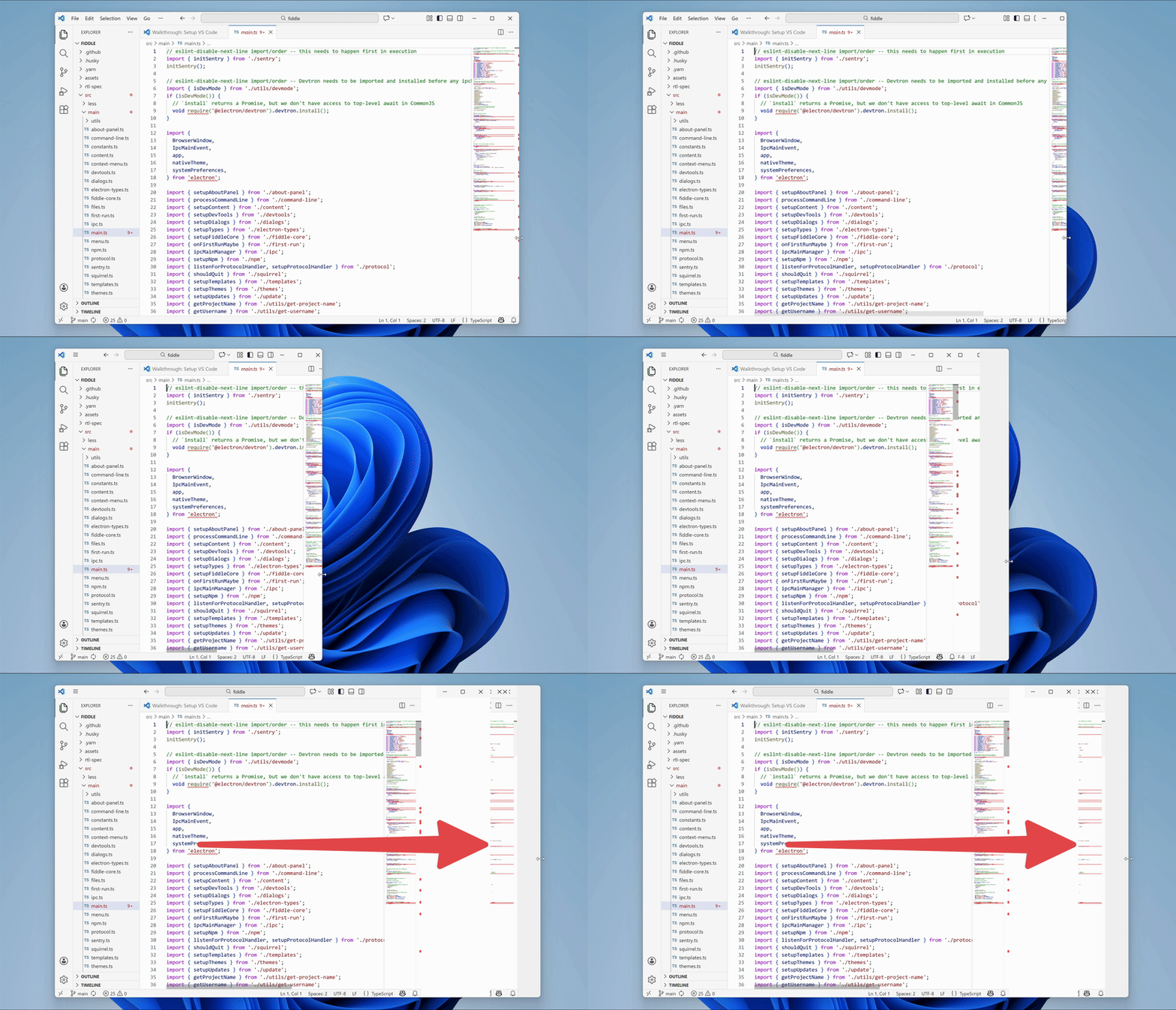
是什么让这个漏洞特别有趣?
🌐 What made this bug particularly interesting?
- 很有挑战性。
- 它位于一个大型代码库的深处。
- 正如你稍后会看到的,系统内部其实有两个不同的漏洞。
修复错误
🌐 Fixing the bug
遇到这样的漏洞,首先的挑战是确定从哪里开始调查。
🌐 With a bug like this, the first challenge is figuring out where to start looking.
Electron 构建在 Chromium 之上,Chromium 是 Google Chrome 的开源版本。在编译 Electron 时,Electron 的源代码会作为子目录添加到 Chromium 的源代码树中。然后,Electron 依赖 Chromium 的代码来提供现代浏览器的大部分功能。
🌐 Electron builds upon Chromium, the open source version of Google Chrome. When compiling Electron, Electron's source code is added into the Chromium source tree as a subdirectory. Electron then relies on Chromium's code to provide most of the functionality of a modern browser.
Chromium 大约有 3600 万行代码。Electron 也是一个大型项目。这有很多代码可能会导致这个问题。
🌐 Chromium has about 36 million lines of code. Electron is a large project, too. That is a lot of code that could be causing this issue.
缩小根本原因范围
🌐 Narrowing down the root cause
我做了很多实验。
🌐 I did a lot of experimentation.
首先,我注意到这个问题在谷歌浏览器中也会发生:
🌐 First, I noticed that the issue occurred in Google Chrome, too:

这表明问题很可能出在 Chromium,而不是 Electron。
🌐 This suggested that the issue was likely in Chromium, not in Electron.
此外,这个问题在 macOS 上并不明显。这表明问题出在 Windows 特有的源代码中。
🌐 Additionally, the issue was not visible on macOS. That suggested that it was in Windows-specific source code.
关键线索
🌐 The crucial lead
我尝试了很多不同的命令行参数和配置选项。
🌐 I tried a lot of different command line flags and configuration options.
我注意到app.disableHardwareAcceleration()解决了这个问题。在没有硬件加速的情况下,这个问题就消失了。
🌐 I noticed that app.disableHardwareAcceleration() fixed the issue. Without hardware acceleration, the issue was gone.
这里有一些背景信息:Chromium 支持多种不同的图形 API 来在屏幕上显示像素(OpenGL、Vulkan、Metal 等)。在 Windows 上,它使用的图形 API 与 macOS 或 Linux 不同。即使在 Windows 上,Chromium 也可以使用多种不同的图形后端。
🌐 Here is some context: Chromium supports various different graphics APIs for showing pixels on screen (OpenGL, Vulkan, Metal, and more). On Windows, it uses different graphics APIs than on macOS or Linux. Even on Windows, Chromium can work with multiple different graphics backends.
Chromium使用哪种图形后端取决于用户的硬件。例如,一些图形后端要求计算机具有GPU。
🌐 Which graphics backend Chromium uses depends on the user's hardware. For example, some graphics backends require the computer to have a GPU.
我尝试了各种图形后端,并注意到以下标志解决了问题:
🌐 I tried various graphics backends and noticed that the following flags fixed the issue:
--use-angle=warp--use-angle=vulkan--use-gl=desktop--use-gl=egl--use-gl=osmesa--use-gl=swiftshader
以下标志重现了该问题:
🌐 The following flags reproduced the issue:
--use-angle=d3d11(这是目前在 Windows 上的默认设置)--use-angle=gl(在 Windows 上会回退到 Direct3D 11,参见chrome://gpu/)
没有任何工作标志足够好,可以在 Windows 上的 Electron 应用中作为默认使用。它们要么速度太慢,要么缺乏广泛的驱动支持。
🌐 None of the working flags were good enough to be used as the default in Electron apps on Windows. They were either too slow or lacked broad driver support.
然而,这些变通方法指引了我正确的方向。它们表明问题出在仅用于 ANGLE Direct3D 11 后端的代码路径中。
🌐 However, these workarounds pointed me into the right direction. They showed that the issue was in a code path that was only used with the ANGLE Direct3D 11 backend.
Direct3D 是一个用于硬件加速图形的 Windows API。
ANGLE 是一个将 OpenGL 调用转换为给定操作系统本地图形 API 调用的库,这里是 Direct3D。ANGLE 允许 Chromium 开发者在所有平台上编写 OpenGL 调用。然后 ANGLE 会根据使用的图形 API,将它们转换为 Direct3D、Vulkan 或 Metal API 调用。
定位相关的 Chromium 组件
🌐 Locating the relevant Chromium component
Chromium 在成千上万个地方引用了 Direct3D。逐一检查所有这些引用是不现实的。
🌐 Chromium references Direct3D in tens of thousands of places. It wasn't realistic to go through all of them.
偶然间,我在 Chromium 源代码中发现了一些有用的调试标志:
🌐 By chance, I stumbled across a few helpful debugging flags in the Chromium source code:
--ui-show-paint-rects--ui-show-property-changed-rects--ui-show-surface-damage-rects--ui-show-composited-layer-borders--tint-composited-content--tint-composited-content-modulate- (以及更多)
它们高亮了浏览器窗口中由 Chromium 图形堆栈的不同部分重绘或更新的区域。
🌐 They highlight areas of the browser window that were redrawn or updated by different parts of the Chromium graphics stack.
这让我能够看出图形堆栈的哪一部分产生了哪种输出。
🌐 That allowed me to see which part of the graphics stack was producing which output.
尤其是,--tint-composited-content 和 --tint-composited-content-modulate 的组合非常有用。前者给合成器的输出增加了一层色彩。后者则在每一帧上改变色彩的颜色。
🌐 In particular, the combination of --tint-composited-content and --tint-composited-content-modulate was really helpful. The former adds a tint to the output of the compositor. The latter changes the tint color on every frame.

在截图中,带青色滤镜的那一帧是最后被绘制的帧。
🌐 In the screenshot, the cyan-tinted frame was the last frame that was being drawn.
那个画面右侧的卡顿不是青色的。它渲染的是前几帧残留的不同颜色。这表明卡顿并不是由合成器引起的。合成器输出的是正确的图片。
🌐 The jank to the right of that frame was not tinted cyan. It was tinted in different colors that were still there from previous frames. This indicated that the jank was not coming from the compositor. The compositor was sending the right output.
合成器是 Chromium 图形堆栈的一部分。以下内容非常简化,但为了本博文的目的,你可以这样理解它:
🌐 The compositor is part of Chromium's graphics stack. The following is very simplified, but for the purpose of this blog post you can imagine it like this:
- 合成器
cc生成一个CompositorFrame,其中包含绘制指令。 cc将CompositorFrame发送到显示合成器viz。viz然后绘制帧并将其显示在屏幕上。
给每个 CompositorFrame 上色显示合成器产生了正确的输出。因此问题一定出在显示合成器 viz 上。
🌐 Tinting each CompositorFrame showed that the compositor produced the right output. So the issue had to be in the display compositor viz.
定位相关的 viz 代码
🌐 Locating the relevant viz code
从那里,我开始在 viz 源代码中搜索有关 Direct3D 的提及。
🌐 From there, I started searching for mentions of Direct3D in the viz source code.
注意:从这一部分开始,帖子会变得有些技术性,并会引用源代码符号。
🌐 Note: From here on, the post will get a bit more technical and reference source code symbols.
我发现,在 ANGLE 的 Direct3D 11 后端中,Chromium 使用 Windows 的 DirectComposition API 来绘制窗口内容。
🌐 I found that on the ANGLE Direct3D 11 backend, Chromium uses the Windows DirectComposition API for drawing the window contents.
Chromium 的 DirectComposition OutputSurface 与 Chromium 中的大多数其他输出表面不同。它具有 supports_viewporter 功能(来源链接 1, 来源链接 2)。
🌐 Chromium's DirectComposition OutputSurface differs from most other output surfaces in Chromium. It has the capability supports_viewporter (source link 1, source link 2).
输出表面是一个可以绘制的位图,通常由 GPU 纹理支持。
🌐 An output surface is a bitmap that can be drawn to, often backed by a GPU texture.
如果没有 supports_viewporter,每当窗口大小变化时,Chromium 会创建一个与新窗口大小相匹配的新输出表面。然后它会在该表面上绘制并显示它。
🌐 Without supports_viewporter, whenever the window size changes, Chromium will create a new output surface matching the new window size. Then it will draw on that surface and show it.
supports_viewporter 尝试减少这些昂贵的表面分配。使用 supports_viewporter 时,Chromium 不会在每次调整大小时分配新的表面。相反,它将分配一个比我们需要绘制的内容更大的表面。然后,它只会在屏幕上绘制和显示该表面的某个子矩形(“视口”)。表面的其他部分不应显示在屏幕上。
这应该能使调整大小更高效,因为 Chromium 所需做的只是将表面填充到合适的宽度和高度,而不是每次调整大小时都分配一个新的表面。这个表面调整大小的逻辑位于 direct_renderer.cc 中。
🌐 This is supposed to make resizing more efficient because all Chromium needs to do is pad the surface to the proper width and height instead of allocating a new surface on every resize. This surface resize logic lives in direct_renderer.cc.
看起来是这样的:
🌐 Here's what that looks like:

让我解释一下:
🌐 Let me explain:
- 蓝色矩形是我们的表面。
- 绿色区域是我们的视口,即表面上应当可见并且我们主动绘制的区域。
- 红色矩形是我们的裁剪矩形(角度),也就是屏幕上实际显示的表面部分。
作为性能优化,当我们获取新帧时,只有视口(绿色区域)会被重绘。其余部分保持不变。这一点很重要。我们只重绘绿色视口。我们不会更新视口之外的区域。
🌐 As a performance optimization, only the viewport (the green area) is repainted when we get a new frame. The rest is left unchanged. This is important. We only ever repaint the green viewport. We don't update the areas outside of the viewport.
当我们调整窗口大小时,应该发生的是在一次原子操作中(即同时发生),我们重绘视口(即屏幕上应该可见的区域),然后更新裁剪矩形,将表面裁剪到新的视口大小。
🌐 When we resize the window, what's supposed to happen is that in an atomic transaction (= at the exact same time) we repaint the viewport (= the area that's supposed to be visible on screen) and then update the clip rect to clip the surface to the new viewport size.
调整大小后,它应该看起来像这样:
🌐 After the resize, it should look like this:

这就是我们遇到的两个错误中的第一个。
🌐 And that's where we get to the first of our two bugs.
第一个错误
🌐 First bug
有时这些操作可能会不同步。例如,裁剪矩形可能会在视口重新绘制之前更新。然后我们会得到这样的结果:
🌐 Sometimes these operations can get out of sync. For example, the clip rect might get updated before the viewport is repainted. Then we get a result like this:

我们仍然在绿色视口中显示旧的帧。但裁剪矩形变大了,我们显示了还未重绘的表面区域。
🌐 We still show the old frame in the green viewport. But the clip rect has become larger and we show areas of the surface that we haven't repainted yet.
在第一次调整窗口大小时,这些区域会是黑色的。第二次调整大小时,这些区域会被填充上之前的像素值。它们会显示我们之前在这些区域绘制的内容。
🌐 On the first resize of a window, these areas would be black. On the second resize, those areas would be filled with old pixel values. They would show whatever we had previously painted in those areas.
同样,在某些极端情况下,当缩小窗口时,我们有时会在更新裁剪矩形之前重新绘制视口。
🌐 Similarly, in a certain edge case while making the window smaller, we would sometimes repaint the viewport before we would update the clip rect.

那么剪辑矩形的部分区域仍会显示上一帧,因为新帧较小,而且我们没有重绘新视口之外的任何区域。
🌐 Then parts of the clip rect would still show the previous frame because the new frame was smaller and we did not repaint any areas beyond the new viewport.
那么为什么这些操作不会同步进行呢?
🌐 Now why do these operations not happen in sync?
我们这里使用两个不同的 Windows API:
🌐 We use two different Windows APIs here:
IDXGISwapChain1::Present1— 这会显示屏幕上的新像素 / 更新新的视口。IDCompositionDevice::Commit— 这会更新剪辑矩形。
重要的是要理解:这两个函数都会在 CPU 上同步返回。然而,它们会安排任务在 GPU 上异步运行。Windows 及其服务(例如 DWM)决定这些任务何时运行以及运行顺序。因此,这些任务是异步生效的,并且不一定在同一帧内完成。
🌐 Here's what's important to understand: both functions return synchronously on the CPU. However, they schedule tasks that run asynchronously on the GPU at a later time. Windows and its services (such as DWM) decide when these tasks will run and in which order. So they take effect asynchronously, and not always within the same frame.
不幸的是,Windows 没有提供方法让我们同步这些操作。所以我不得不寻找其他方法来解决这个问题。
🌐 Unfortunately, Windows provides no way for us to synchronize those operations. So I had to find other approaches to fix this.
我与 Chromium 维护者评估了两种方案:
🌐 There were two options that I evaluated with the Chromium maintainers:
- 在调整大小时,将视口外的所有已绘制区域设为透明。这会使这些区域不可见,从而修复伪影问题。
- 在调整大小时,将
IDXGISwapChain1切换到与IDCompositionDevice::Commit同步更新的 DirectComposition 表面。这也能修复图片瑕疵。
我们选择了第一个选项,因为它比第二个选项调整尺寸的速度更快。
🌐 We went with the first option because it leads to faster resizes than the second option.
我在 Chromium 上提交了一个补丁,实现了第一种解决方案。
🌐 I landed a patch in Chromium that implemented that first solution.
我还提交了另外两个补丁,为主要补丁做准备:
🌐 I also submitted two other patches in preparation for the main patch:
- 第一个 链接 修复了现有代码中的一个错误,该错误会使 CI 与主补丁一起使用时失败。它还使启动 Electron 应用和 Chrome 的速度稍微快了一点。
- 第二个部分被拆分出来,以便在主补丁上进行代码审查更容易。
第二个错误
🌐 Second bug
除了这个第一个漏洞之外,还有第二个漏洞也导致了像素陈旧。
🌐 In addition to this first bug, there was a second bug which also led to stale pixels.
事情是这样的:
🌐 Here's what was going on there:
当用户调整窗口大小时,Chromium 需要重新绘制窗口内容以适应新的窗口尺寸。这需要一些时间。新帧不会立即准备好。
🌐 When the user resizes the window, Chromium needs to redraw the contents of the window for the new window size. This takes some time. The new frame isn't ready immediately.
这里有一系列展示这一点的帧:
🌐 Here's a sequence of frames that demonstrates this:


在调整大小的某个时候,Windows 会告诉我们:“窗口宽度为 1000 像素。” 但浏览器合成器生成的帧却落后了。我们最后绘制的帧可能只有 600 像素宽。
🌐 At a certain time during the resize, Windows tells us: "The window is 1,000 pixels wide." But the frames that the browser compositor produces are lagging behind. The last frame that we have painted might be 600 pixels wide.
历史上,Chromium 曾经会跳过那些窗口宽度与上一次绘制的框架宽度不匹配的帧。它会决定干脆不更新窗口。
🌐 Historically, Chromium used to skip frames where the width of the window did not match the width of the frame that it last painted. It would decide to just not update the window.
然而,这通常会导致窗口内容在调整大小操作完成之前根本不会更新。
🌐 However, that would often lead to the window contents not being updated at all until the resize operation was finished.
所以在 2015 年,有人决定:“为什么不展示这些帧呢?它们可能不完全符合窗口大小,但至少我们可以显示一些东西。”
🌐 So in 2015 someone decided: "Why not show these frames? They might not match the window size perfectly, but at least we can show something."
它会导致装订线,但那时装订线是黑色的。所以这比之前的实现更好。
🌐 It would lead to gutter, but at that time the gutter was black. So that was better than the previous implementation.
现在,十年过去了,有了 DirectComposition,那条水槽里常常充满了陈旧的像素。
🌐 Now, 10 years later with DirectComposition, that gutter was often filled with stale pixels.
让我们来看一下那里发生了什么:
🌐 Let's look at what was happening there:
每一帧都由多个渲染通道组成。这些渲染通道表示屏幕上应该绘制的各种内容,从复杂的位图到填充纯色的矩形。
🌐 Every frame consists of multiple render passes. These render passes represent the various things that should be drawn on screen. From complicated bitmaps to rectangles filled with solid colors.
每一帧都有一个根渲染通道,它包含所有其他渲染通道并将它们连接在一起。(渲染通道以树状结构排列,根渲染通道是该树的根。)
🌐 Every frame has a root render pass, which contains all other render passes and glues them together. (Render passes are arranged in a tree structure and the root render pass is the root of that tree.)
所以现在在调整大小的进程中,我们会达到这样一个点:我们知道窗口宽度是1000像素。因此,我们会将输出表面的视口也调整为1000像素宽。但我们刚收到的帧只有600像素宽。
🌐 So now during a resize, we'd get to a point where we know the window is 1,000 pixels wide. Accordingly, we'd adjust the viewport of our output surface to also be 1,000 pixels wide. But the frame that we just received is only 600 pixels wide.
2015年的优化随后会将根渲染通道的宽度也改为1000像素。但它不会改变渲染通道实际上在屏幕上绘制的内容。它们仍然只包含绘制宽度为600像素的图片的指令。
🌐 The optimization from 2015 would then go and change the width of the root render pass to also be 1,000 pixels. But it wouldn't change what the render passes would actually draw on screen. They'd still only contain instructions to draw a picture that is 600 pixels wide.
这就是它的样子:
🌐 Here's what that would look like:

黄色区域是帧的渲染进程中实际绘制内容的区域。它宽度为600像素。
🌐 The yellow area is the area in which the render passes of the frame actually drew something. It's 600 pixels wide.
然而,我们的绿色视口和红色剪裁矩形宽度都是 1,000 像素。这就是我们在屏幕上显示的区域。(毕竟,根渲染通道的宽度属性声称它将重绘 1,000 像素的完整区域。)
🌐 However, our green viewport and our red clip rect are 1,000 pixels wide. That's the area that we show on screen. (After all, the width attribute of the root render pass claimed that it would redraw the full area of 1,000 pixels.)
但是因为我们没有为右侧的400像素提供绘制指令,所以那些区域没有得到更新。
🌐 But because we had no draw instructions for the 400 pixels on the right, those areas didn't get updated.
在第一次调整大小时,我们会在那里显示黑色像素。(那是我们初始化画布时使用的颜色。)
🌐 On the first resize, we'd show black pixels there. (That's the color that we initialize the surface with.)
在随后调整大小时,这些区域会显示之前绘制的内容。我们会看到陈旧的像素。
🌐 On subsequent resizes, those areas would show whatever was drawn to them before. We'd see stale pixels.
我在 crrev.com/c/7156576 上修复了这个问题。
🌐 I landed a fix for this issue in crrev.com/c/7156576.
该修复更改了我们在收到与窗口尺寸不同的帧时的处理方式。我们不再调整帧大小并添加包含过期像素的边距,而是调整我们的视口和裁剪矩形。
🌐 The fix changes what we do when we receive a frame with a different size than our window. Instead of resizing the frame and adding gutter that contains stale pixels, we resize our viewport and our clip rect.

我们将表面裁剪到我们收到的框架大小。我们不会显示超过我们绘制指令所涉及的 600 像素之外的任何内容。
🌐 We clip our surface to the size of the frame that we received. We don't show anything beyond the 600 pixels that we have draw instructions for.
好了,再也没有边沟,再也没有陈旧的像素了!
🌐 Voilà, no more gutter, no more stale pixels!
如果没有 supports_viewporter,这将是一个昂贵的操作,因为它会分配一个新的输出表面。然而,使用 DirectComposition 时,我们使用“viewporter”功能。因此,当我们更改视口大小时,不会重新分配表面。我们只是显示其中的不同部分。因此,这是一个廉价的操作。
将补丁回移到 Electron
🌐 Backporting the patches to Electron
一旦这些修复被合并到 Chromium,我们也必须将它们引入到 Electron 中。
🌐 Once the fixes made it into Chromium, we had to pull them into Electron, too.
在 main 分支上,Electron 不断更新其 Chromium 版本。因此,这些补丁已在一个 Chromium 升级 PR 中合并到 main。
🌐 On the main branch, Electron updates its Chromium version constantly. As a result, the patches were merged into main in a Chromium roll PR.
然而,目前进入 main 的提交大约需要三个月才会包含在 Electron 的版本发布中。我们现有的发布和预发布分支运行的是较旧的 Chromium 版本。
🌐 However, commits that make it into main right now will only be included in an Electron release in about three months. Our existing release and pre-release branches run on older Chromium versions.
因此,下一步是将这些补丁回移植到 Electron 39 和 Electron 40。
🌐 Thus, the next step was to backport the patches to Electron 39 and Electron 40.
Electron 会在 patches/chromium 目录 中保留一个 Chromium 补丁列表。当我们回溯移植 Chromium 补丁时,会将其添加到该处。在构建 Electron 时,这些补丁会应用到 Chromium 源代码中。
🌐 Electron keeps a list of Chromium patches in the patches/chromium directory. When we backport a Chromium patch, we add it there. When building Electron, these patches are applied to the Chromium source code.
(总体来说,我们尽量保持 Chromium 补丁数量较少。每个补丁在 Chromium 更新时都可能导致合并冲突。补丁带来的维护负担是现实存在的。)
Electron 39 的 回移 PR 很快就被合并了。这个修复已成为 Electron 39.2.6 的一部分。🎉
🌐 The Electron 39 backport PR was merged pretty quickly. The fix became part of Electron 39.2.6. 🎉
如果你在 Electron 39.2.6 或更高版本中调整窗口大小,你将不再看到过时的像素。
🌐 If you resize a window on Electron 39.2.6 or later, you'll see no more stale pixels.
(这些补丁也是 Google Chrome Canary 的一部分。它们应该会在 2026 年 2 月的稳定版本 Google Chrome 中发布。)
🌐 (The patches are also part of Google Chrome Canary. They should be part of a stable Google Chrome release in February 2026.)
致谢
🌐 Thanks
非常感谢 Plasticity 对这项工作的资助!
🌐 Big thanks to Plasticity for funding this work!
感谢 Chromium 团队的 Michael Tang 和 Vasiliy Telezhnikov 提供的帮助。
🌐 Thanks to Michael Tang and Vasiliy Telezhnikov from the Chromium team for their help.
最后的想法
🌐 Final thoughts
这是我有生以来处理过的最难的一个 bug(而且在我 18 年的软件编写经历中,我处理过许多难题)。
🌐 This was the hardest bug I have ever worked on (and I have worked on many hard bugs in 18 years of writing software).
但这也是我参与过的最有趣的项目之一。
🌐 But it was also one of the most fun projects I have ever worked on.
如果你觉得有趣,请考虑为 Electron 做出贡献!我们很高兴看到新面孔加入。
🌐 If you found this interesting, please consider contributing to Electron! We love seeing new faces.